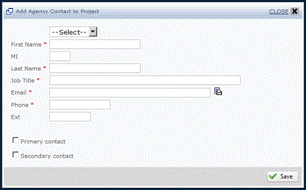
Depending on the type of data required, eGrants presents full-screen displays or smaller data entry windows.
Each entry screen or window contains “fields” for the entry or selection of data.
Click any field to begin typing, complete a checkbox or select an item. To move quickly among the fields, press TAB to move to the next field or SHIFT+TAB to move to the previous field.
If data cannot be entered in a field, such as for a read-only screen, eGrants does not allow typing or editing.
REQUIRED FIELDS: If information is required, the field is marked with a red asterisk *. You must complete the field to complete your entry and save the new record.
Text fields are displayed as empty rectangles.
 Single-Line text fields
allow you to enter of up to 120 characters,
including letters, numerals and punctuation marks.
Single-Line text fields
allow you to enter of up to 120 characters,
including letters, numerals and punctuation marks.
Multi-Line text fields
appear as a larger rectangle and allow
you to enter (or paste) an unlimited amount of data. If the
text you enter is too large to fit in the display, scroll bars appear
at the right side of the text field.
Cut-and-Paste is available in all text fields. To
copy, right-click and select Copy, or
select the text and type CTRL+C. To paste, right-click and select
Paste, or select the text and
type CTRL+V.
Numerical text fields
restrict entry to include only specific
types of information, such as zip codes or currency. In general,
punctuation such as commas and dollar signs should not be entered.
If a date is required, you can enter the date manually or use the calendar.
Manual Date Entry. Click
the field and type the date in mm/dd/yyyy format.
Calendar Selection. To
view and select dates, click the calendar icon  .
.
The calendar window appears.
Click the double arrows ƒƒ or
„„ to move among years
of the calendar display.
Click the single arrows ƒ or
„ to move among months
of the calendar display.
After the correct date is displayed, click the date to close the calendar
and insert the date into the field.
Use the checkbox and list fields to select information when needed.
Single Checkbox fields
are used to include “yes” or “no” for a question or condition. Click
the checkbox once to insert a checkmark. Click a second time
to remove the checkmark.
Checkbox list fields allow you to select one or more items from
a list. Click a checkbox once to insert a checkmark. Click
it a second time to remove the checkmark.
Radio button lists
display round buttons. You can select only one of the options
in the list. Click a button once to select it. Click
it a second time to deselect it.
Dropdown boxes enable you to complete a field
by selecting one answer from a fixed list  . Click
the down arrow to display available selections. Click the selection
to insert it into the field.
. Click
the down arrow to display available selections. Click the selection
to insert it into the field.
Throughout the system, data entry screens and windows contain Save buttons.
Save. Click
the Save button  to
save your work and close the current window or screen. The
system returns to the previous menu or screen.
to
save your work and close the current window or screen. The
system returns to the previous menu or screen.
Save and Continue. Click
the Save and Continue button  to
save your work without closing the current screen or window. Use
it to save your information and continue working at any time.
to
save your work without closing the current screen or window. Use
it to save your information and continue working at any time.
Select. If
an entry window contains checkboxes for selection, click the Select
button  to save your selections
and close the window.
to save your selections
and close the window.
IMPORTANT: Save your work frequently. For security, eGrants logs off your session after 20 minutes of inactivity. If you are interrupted, click Save to ensure that your work is saved to prevent the need to re-enter data.
Throughout the system, you can an entry screen or window
by clicking the word CLOSE or by clicking the Close icon
 .
.
The window closes without saving the data you entered. The system returns to the previous screen or menu.
For more information:
Main Menu > Features and Functions
Selection Grid > Features and Functions
Standard System Icons > Features and Functions
Shortcuts and Special Features