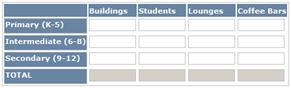
Spreadsheet questions collect columns of related information for specified entries (rows). If a spreadsheet appears for entry, simply click and complete the fields as needed.
All fields enable the use of copy, cut and paste functions. Copy (CTRL+C), cut (CTRL+X) and paste (CTRL+V) to insert text from other fields or other documents.
1. From the current Grant Application Detail screen, click a section name to display its questions.
2. Click in any spreadsheet field and begin typing. Some fields allow only a limited number of characters. Some fields also may restrict the entry to include only numerals.
3. Use the standard arrows and editing keys to select, delete and edit text.
4. To move to another field, click it. You can press TAB or SHIFT+TAB to move forward or backward among the fields as needed.
5. If no information is needed for a row or column, leave the field(s) blank.
6. Gray fields indicate that data entry is prohibited. Some gray fields may include formulas (such as totals) that are completed by the system automatically.
Note that total and other calculations are not performed until the current Grant Application Section Detail screen is saved and refreshed. To view the totals, click Save and click Return to Grant Application Detail to exit the screen. Click the section heading to return to the Grant Applicationt Section Detail screen. When the screen appears, totals will be filled in the appropriate fields.
For more information:
Selecting and Viewing Grant Applications
Answering Grant Application Questions
Grant Application Section Detail Screen > Basic Information
Answer Grant Application Questions > Step-by-Step
Enter Data in Text Fields > Step-by-Step
Enter Data in Checkboxes, Dropdowns and Lists > Step-by-Step
Enter Data in Pre-formatted Fields > Step-by-Step
Enter Data in Budget Table Questions > Step-by-Step