Various types of fields restrict the number of entries available and limit the answers you can supply.
From the current Grant Application Detail screen, click a section name to display its questions.
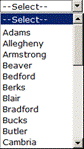
Dropdown lists enable the selection of only one item in a list.
1. Click the arrow beside the list to display the answer options.
2. Click the correct answer (or use the arrow keys) to select it.
3. To exit the field, click another field (or press TAB).
4. To change the field, simply select another answer.
Radio lists enable the selection of only one item in a list.

1. Click the round radio button beside the correct answer.
2. To select a different answer, click another radio button.
A single checkbox indicates that the question is “true” or that an item or action has been checked off.
1. Click the checkbox to place a checkmark and select it.
2. Click the checkbox to remove a checkmark and deselect it.
Checkbox lists enable the selection of any, all or none of the items listed.
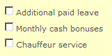
1. Click one or more checkboxes to place a checkmark and select the answer(s).
2. Click any checkbox to remove its checkmark and deselect the answer(s).
For more information:
Selecting and Viewing Grant Applications
Answering Grant Application Questions
Grant Application Section Detail Screen > Basic Information
Answer Project Questions > Step-by-Step
Enter Data in Text Fields > Step-by-Step
Enter Data in Pre-formatted Fields > Step-by-Step
Enter Data in Spreadsheet Questions > Step-by-Step
Enter Data in Budget Table Questions > Step-by-Step