 in the row
to view full details for the consolidated project. The Project
Detail screen appears. For consolidated projects, the Consolidated
Sub Programs pane appears on the right side of the screen.
in the row
to view full details for the consolidated project. The Project
Detail screen appears. For consolidated projects, the Consolidated
Sub Programs pane appears on the right side of the screen.To complete the Nonpublic Involvement section of a Division of Federal Programs grant application:
1. Verify the Program Office in the upper right corner. To change the program office, click the link to open the Select Program Office window. Click SELECT beside a Program Office.
2. Verify the Program Year in the upper right corner. To change the year, click the link to open the Select Program Year window. Choose a new year and click OK.
3. From the main menu, click Grants Management. The dropdown menu appears.
4. Click Agency Project Summary. The Agency Project Summary screen appears.
5. Click the arrow beside a program name to expand its group and view all projects currently in-process.
6. Click
the Select icon in the row
to view full details for the consolidated project. The Project
Detail screen appears. For consolidated projects, the Consolidated
Sub Programs pane appears on the right side of the screen.
7. To
view the subprojects associated with the consolidated project, click the
Select icon  beside the project
name. The Project Detail screen for the selected project
appears.
beside the project
name. The Project Detail screen for the selected project
appears.
8. The link to the Nonpublic Involvement section appears in a separate area on the left side of the screen. Click the link. The Project Section Detail screen displays a grid for adding nonpublic schools to one or more districts included in the application.
1. Click
the Add Building icon  . The
Add Building window appears.
. The
Add Building window appears.
2. Buildings are listed in the selection grid. Locate the building or buildings you wish to add using one of the search options:
 Search by
Zip Code
Search by
Zip Code
Type the zip code in the field. Click the Search
button to list all nonpublic school buildings in the zip code.
Search by
Building Name
Type any combination of letters or numerals contained in the building
name. Click the Search button to list all nonpublic
school building names containing the text.
Alphabetic
or Numeric List
Click the links to any letter or numeral displayed above the selection
grid. All building names starting with the selected letter
or numeral appear in the grid.
The buildings you searched appear in the selection grid.
3. To add a nonpublic building and answer questions regarding your Agency’s involvement, click one or more checkboxes.
4. Click the Add Buildings button to close the window and return to the Project Section Detail screen.
5. To
select additional buildings, click the Add Building icon and
complete the Add Building window as needed.
1. After adding all nonpublic school buildings, click the down arrow beside the school district name to expand the selection grid and view the buildings.
To remove a building from the list, click
the Delete icon  .
.
2. To
select a building for data entry, click the Select icon . The
Building Detail window appears.
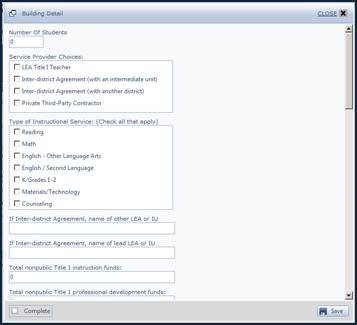
3. Complete the fields. Use the scroll bar to move among the questions as needed.
Number of Students |
Numeric |
Type the Number of Students in the nonpublic building serviced by your Agency. This number is used in subsequent screens in budget calculations. |
Service Provide Choices |
Checkboxes |
Click one or more checkboxes to indicate the types of provider and/or agreements maintained for the serviced nonpublic building. |
Type of Instructional Service |
Checkboxes |
Click one or more checkboxes to indicate the type of service provided to the nonpublic students. Check all that apply. |
Inter-District Agreement |
Text Fields |
If the service is provided as part of an Inter-District agreement, click and complete the fields: §
Other LEA or IU §
Main LEA or IU |
Total Nonpublic Funds |
Numeric Fields |
Click and complete the fields to enter the total of Title I funds allocated to the public school for: § Instruction § Professional Development § Parent Involvement § Summer School |
Nonpublic Share |
Text Field |
Complete the field if the Title I share is not proportionate to the public share. Provide an explanation of the agreement and other details as needed. |
Nonpublic Consultation |
Date Fields |
Complete the fields to record the most recent consultation made with the nonpublic school. Click the field and enter the date in mm/dd/yyyy format or click the Calendar icon to select a date. § Meetings § Phone Calls § Emails § US Mail |
Eligible Student Identification |
Checkboxes |
Click one or more checkboxes to indicate how eligible students are identified. Check all that apply. If needed, click and type other methods in the Other field. |
Schedule of Services |
Text |
Click and enter a detailed schedule of services provided. Note that you can paste information as needed from another document for faster entry. |
Evaluation Assessment |
Checkboxes |
Click one or more checkboxes to indicate the methods of evaluation. Check all that apply. If needed, click and type other methods in the Other field. |
Parental Involvement |
Checkboxes |
Click one or more checkboxes to indicate the parental involvement activities. Check all that apply. If needed, click and type other methods in the Other field. |
Professional Development |
Text |
Click and enter a detailed description of the professional development activities. Note that you can paste information as needed from another document for faster entry. |
Agreement |
Checkboxes |
Two agreement fields are used to indicate that the LEA and nonpublic schools have consulted and that funds are distributed properly. Click the checkboxes. |
4. After answering questions, click the Save button to save the information and close the window. You can select the school building and enter information in the window as often as needed.
5. When all information is complete, click the Complete button. Click the Save button to close the window. The selection grid on the Grant Application Section Detail screen displays a completed checkbox when building information is marked complete.
6. Continue to select school buildings and complete the entry window.
7. You must mark each school building complete to complete the section.
8. Click the Save button as needed to save your information and return to the Grant Application Detail screen. Click Save & Continue to save the current selections and remain on the current screen.
9. After all information is entered, click the Mark Section Complete button at the bottom of the screen.
10. Click the Back to Grant Application Detail button to return to the main Grant Application Detail screen.
For more information:
Selecting and Viewing Grant Applications
Managing Consolidated Grant Applications
Managing Consortium Grant Applications